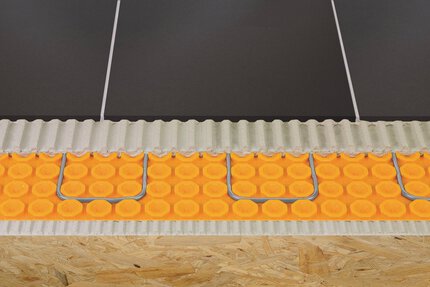
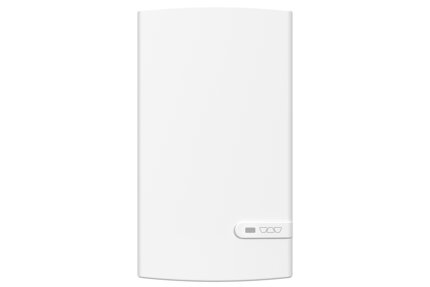
Schluter®-DITRA-HEAT-E-RS1
Termostato inteligente para el sistema DITRA-HEAT

- Descargue la aplicación Schluter® Smart Thermostat para acceder cómodamente y a distancia a su sistema de calefacción de pisos DITRA-HEAT
- Cree escenarios en donde haya varios termostatos instalados
- La función Geofencing de delimitación geográfica sube la calefacción cuando usted vuelve a casa y detecta cuando está fuera
- Instalación y configuración rápidas y sencillas
- Múltiples funciones de ahorro de energía
- Botones bloqueables
- Luz de fondo adaptable
- Límite máximo de temperatura ambiente cuando está en modo de control del piso
- Protección de temperatura para suelos laminados, LVT y revestimientos similares
- Indicador meteorológico exterior
- Compatible con el módulo de potencia Schluter®-DITRA-HEAT-E-RRS
Find recommended accessories here


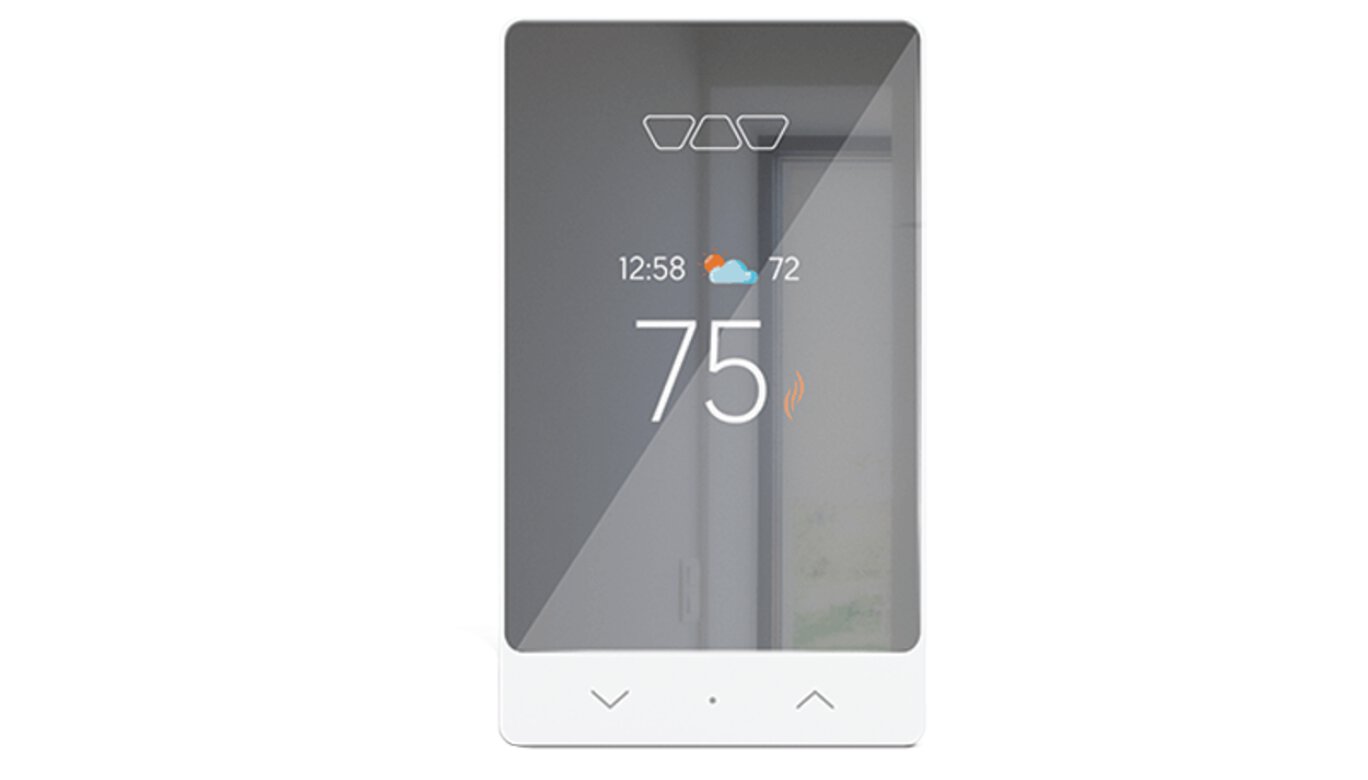
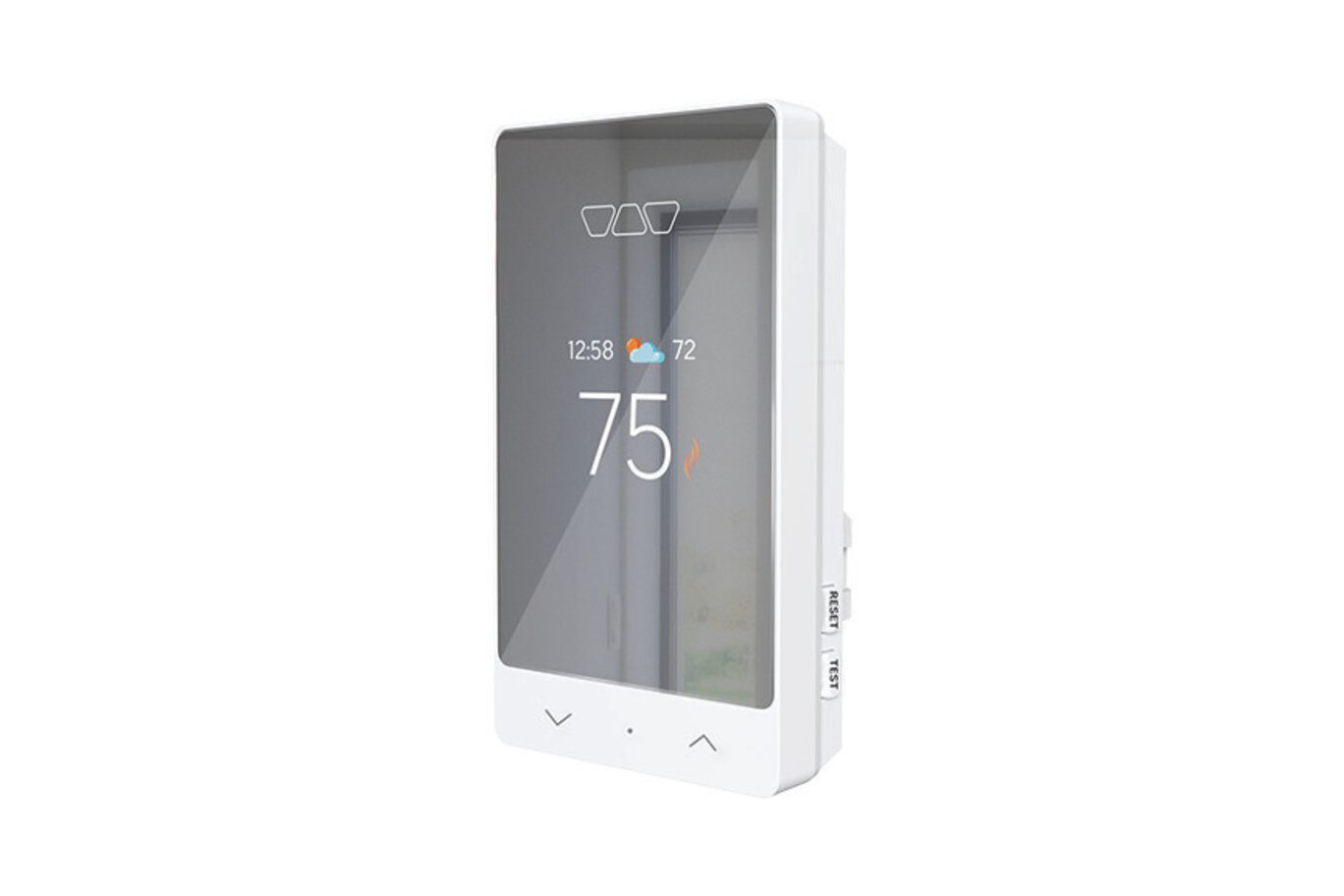
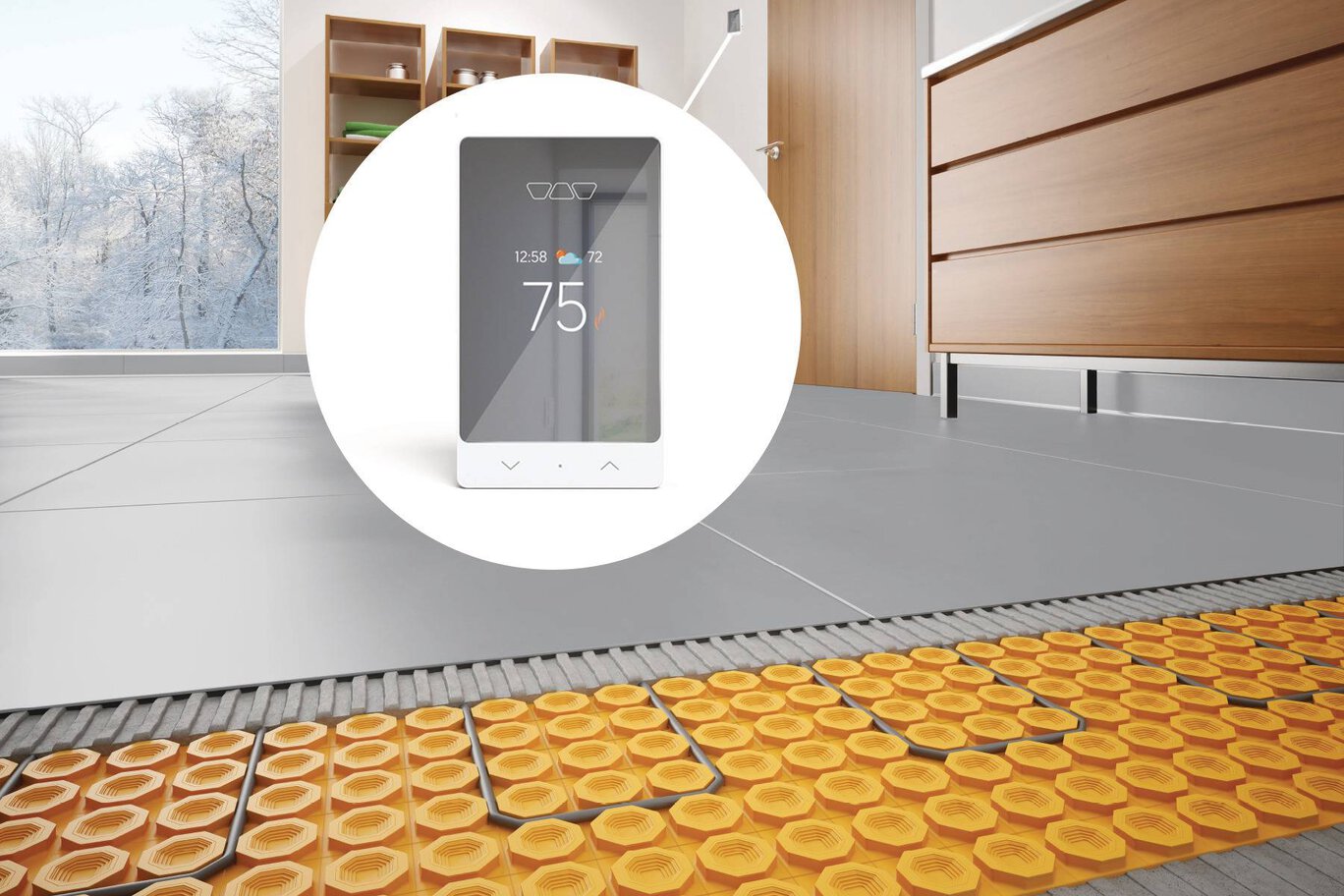
The Schluter®-DITRA-HEAT-E-RS1 is a smart thermostat for the Schluter®-DITRA-HEAT floor warming system. It features a sleek design with a mirror-finish and third-party integration with popular voice and home assistants to easily include floor warming into your smart home capabilities.
DITRA-HEAT-E-RS1 is a smart thermostat used to control the DITRA-HEAT-E-HK heating cables (either 120 V or 240 V). The thermostat features a built-in Class A ground fault circuit interrupter (GFCI) and includes input terminals to connect a 10k floor temperature sensor. Two floor temperature sensors are provided with each DITRA-HEAT-E-HK heating cable box.
The DITRA-HEAT-E-RS1 was designed to be mainly operated via the Schluter Smart Thermostat app. All features can be programmed and controlled using the app, and these features include remote access, time-temperature scheduling, maximum and minimum floor temperatures, maximum ambient temperature when in floor control mode, easy smart home integration, geofencing capabilities, etc.
The basic installation setup can be programmed from the thermostat menu using the dot soft button and the arrows. Manual temperature adjustments can be made directly using the arrows. When connected to Wi-Fi, the thermostat provides convenient monitoring and adjustment of the floor warming system via our mobile app.
Multiple heating cables may be connected to the thermostat up to the total heating load limit of 15 amps. The DITRA-HEAT-E-RRS power module may be used in conjunction with the thermostat when the heating load exceeds 15 amps (e.g., in large floor applications) to maintain a single point of control. This power module can only be used with the DITRA-HEAT-E-RS1 thermostat.
Note: iPhones running iOS older than version 10 and Android running versions older than 6 are not officially supported by the Schluter Smart Thermostat App.
Please refer to the Smart Thermostat Installation Manual and Schluter®-DITRA-HEAT Installation Handbook for complete DITRA-HEAT system installation instructions.
1. DITRA-HEAT-E-RS1 must be installed in an electrical box. A single gang, deep electrical box or a double gang electrical box with a single gang mud ring is recommended to provide room for the wiring.
2. The power supply must be shut off and all electrical connections must be made by a qualified person according to the electrical and building codes effective in your region.
3. Connect the heating cable ground braid to the grounding screw of the electrical junction box.
4. Remove the faceplate from the thermostat power base by loosening the screw and tilting the thermostat upward.
5. For ease of installation, form the electrical line wires into an “M” or accordion shape. This will make it easier to fold them neatly into the electrical box. Loosen the load screws at the top of the thermostat until they stop.
6. Insert the heating cable conductors into the holes of the load terminals. Since there is no polarity, either heating cable conductor can be connected to either load terminal.
7. Secure the conductors by tightening the screws.
8. Insert the electrical line wires into the line terminals. Refer to the back of thermostat for proper wiring configuration.
9. Secure the wires by tightening the screws and fold the wires into the electrical box.
10. Thread the floor temperature sensors through the slot opening at the bottom left of the thermostat power base. Tape up the secondary floor temperature sensor and secure to the power base.
11. Strip the ends of the floor temperature sensor to expose the wires for ease of installation. Insert the floor temperature sensor wires into the indicated terminals marked “Floor Sensor”. Note that the floor temperature sensor wires have no polarity and can be interchanged between the sensor terminals. Tighten the screws to secure the wires.
12. Align and secure the thermostat power base to the electrical box.
13. The power, heating cable, and floor temperature sensor connections are now complete. Replace the thermostat faceplate and tighten the screw at the bottom of the unit.
Note: Multiple DITRA-HEAT-E-HK heating cables can be connected and controlled by a single DITRA-HEAT-E-RS1 thermostat if the total current is less than 15 amps. The heating cable leads must be wired in parallel according to applicable electrical and building codes. Multiple DITRA-HEAT-E-HK heating cables over 15 amps cannot be connected to a single DITRA-HEAT-E-RS1 thermostat. Additional DITRA-HEAT-E-RS1 thermostats must be used or the DITRA-HEAT-E-RS1 thermostat may be combined with the DITRA-HEAT-E-RRS power modules.
Data sheets
FAQ
¿Puedo bloquear el termostato DITRA-HEAT-E-RS1 para que nadie cambie la configuración?
Yes, using the "Lock" function in the Schluter Smart Thermostat app menu for the particular thermostat.
Read more¿Cómo suspendo mi programación por un período de tiempo determinado?
Press the appropriate arrow on the thermostat to adjust the temperature, or use the APP and select...
Read moreTengo problemas para conectarme a Internet o a la red celular. ¿Puedo desbloquear el teclado incluso si no tengo acceso a la aplicación?
¿Cómo conecto una unidad de expansión/módulo de potencia al termostato inteligente DITRA-HEAT-E-RS1?
Conecte el termostato AUX 1 & 2 puertos a los puertos AUX IN del módulo de alimentación. La longitud máxima es de 80 pies (25 metros) y con cable...
Read more¿Puedo anular la configuración automática de la hora?
No, the time setting and the weather information are automatically tied according to...
Read more¿Puedo ajustar el brillo de la pantalla del termostato?
No, the display brightness is automatically adjusted according to the light in the room.
Read more¿Cómo establezco la carga eléctrica del termostato?
The load is the total amount of watts from all the heating cables connected directly to the thermostat...
Read more¿Se puede instalar el termostato Schluter-DITRA-HEAT-E-RS1 para reemplazar un termostato Schluter existente? ¿Se puede instalar para reemplazar un termostato que no sea Schluter? ¿Cómo se instala?
YES, the thermostat can be used with any electric radiant floor heating system. Consult with a local electrician to ensure...
Read more¿Dónde puedo conseguir el termostato Schluter-DITRA-HEAT-E-RS1?
Check with you local dealer or select "Where to Buy" at the top of this screen for local points of purchase.
Read more¿Qué pasa si hay un corte de energía?
Once the power is restored, the thermostat will return to scheduled settings, or to the manual set point before the outage.
Read moreEl cable calefactor instalado debajo del suelo tiene un cable de tierra, aunque no existe un terminal correspondiente en el termostato. ¿Qué debo hacer con la conexión a tierra?
¿El termostato Schluter-DITRA-HEAT-E-RS1 es compatible con aplicaciones de iOS y Android?
¿Puedo acceder al termostato Schluter-DITRA-HEAT-E-RS1 a través de la web?
¿Cómo me conecto a la red Wi-Fi y configuro esta conexión?
¿Cómo actualizo mi correo electrónico en la aplicación móvil? ¿Qué debo hacer si pierdo mi contraseña?
¿Puede mi termostato recibir actualizaciones de software?
¿Cómo puedo conectar varios termostatos a la misma cuenta?
Just go to "Add Device" in the menu of the Schluter Smart Thermostat app, and they will automatically be added to your account...
Read more¿Cómo doy a otros usuarios acceso al termostato Schluter DITRA-HEAT-E-RS1 a través de la aplicación móvil?
Ya no quiero utilizar la conectividad Wi-Fi de mi termostato Schluter-DITRA-HEAT-E-RS1. ¿Cómo desactivo esta función?
¿Cómo desvinculo mi termostato de una cuenta antigua?
¿Es posible que diferentes usuarios de la aplicación controlen termostatos separados?
Yes, individual accounts (unique email address and password) can be created to control either...
Read moreCuando cambio del modo de control a la temperatura máxima del piso en el termostato, no veo el cambio de modo en la aplicación.
These changes require a reinitialization of the app. Going back to the thermostat main page or...
Read more¿Por qué la configuración Ausente está habilitada en el termostato con un ícono de avión pero la página de inicio de la aplicación dice que la configuración Ausente está activa y no he salido de casa ni he configurado el termostato en modo ausencia?
Only one account can control Geofencing at a time. This happens in situations when more than one smart phone is...
Read more¿Se puede habilitar la geocerca para más de un dispositivo móvil o transferirse de un dispositivo a otro?
Geofencing is set to the first mobile device which activates it. Geofencing for multi-user is...
Read more¿Cómo protejo mi piso laminado, loseta de vinilo de lujo, compuesto de piedra o piso similar estableciendo la temperatura máxima en 28°C (82°F)?
In the "Advanced" settings, when in "Floor" control mode or in "Ambient" control mode, set "Max. Floor Temperature" to...
Read more¿Por qué la compensación de temperatura del suelo no parece funcionar correctamente?
It's working! The offset is applied gradually over time to prevent a sudden or abrupt change in temperature.
Read more¿Qué es el modo de protección contra congelación?
Frost Safe mode prevents the floor temperature from falling below the "Min. Floor Temperature" setpoint that is selected in "Advanced Device Settings".
Read moreTengo un establecimiento comercial. La aplicación del termostato Intel. ¿Puede Schluter trabajar con mi software de automatización de edificios?
¿Con qué versiones de los sistemas operativos iOS y Android es compatible la aplicación?
La aplicación de termostato inteligente Schluter no muestra la unidad de temperatura correcta Fahrenheit (F)/Celsius (°C).
Settings such as temperature unit (°F or °C), time (12- or 24-hour clock), and language (English or French) are not synced between the...
Read moreDITRA-HEAT-E-RS1 está incluido en la lista c-ETL-us de acuerdo con las siguientes normas: UL 60730-1, UL 60730-2-9 CSA E60730-1, CSA E60730-2-9 UL 943 CSA C22. 2 nº 144. 1 Los chips Wifi del termostato DITRA-HEAT-E-RS1 están autorizados por la FCC (EE.UU.) y el IC (Canadá) con los siguientes números:

Watch & Learn
About the product

Cómo instalar el nuevo termostato inteligente Schluter® DITRA-HEAT-E-RS1

Presentación del termostato inteligente Schluter®-DITRA-HEAT-E-RS1
Find some existing tutorials and project documentation videos to learn how-to get the best out of our products - for more fun in your life, start now!
Watch more videos / playlists